EPG Off by 1 Hour? Check the Clock, Source and Offset
An EPG one hour early or late needs a careful check. Compare the device clock, guide source and player offset before changing settings or asking support.
If your EPG is off by 1 hour, check the device’s date and time zone before changing the guide’s time offset. Then compare several channels: a consistent shift across the guide calls for a different investigation from one incorrect channel. Change one setting at a time and record the original value so you can undo the test.
This checklist is for customers and resellers investigating programme times. It does not assume a Max OTT outage, confirm any player’s compatibility with your order, or promise that a time adjustment will repair the underlying guide data.
First, identify what is actually one hour out
Write down the channel, programme title, date, time displayed in the guide and what you expected to see. Compare against the broadcaster’s schedule for the exact channel edition and region. A similarly named regional channel is not a reliable reference for another feed.
Keep three observations separate: the device clock, the programme time printed in the guide, and the programme actually playing. If the listing looks correct but playback shows something else, do not assume that shifting the entire guide is the right fix.
The question comes from a real reader need. In a r/TiviMate discussion dated 8 November 2023, a user asked whether a one-hour discrepancy after a clock change came from the app or provider. Replies disagreed. That historical discussion motivates this diagnostic approach; it is not evidence of a current fault or a verified fix for your device.
Check the device clock before the player
Look at the date, local time and selected time zone in the device’s system settings. Compare them with a reliable local clock. Do this before applying a player offset that could hide an incorrect device setting.
Google’s Android clock documentation treats automatic date/time and automatic time-zone selection as separate settings, and notes that options vary by device. It is general Android guidance, not an identical menu path for every television or streaming box. For your model, use its manufacturer’s instructions.
- Note whether the system clock itself is wrong.
- Check which zone is selected, rather than looking only at the displayed hour.
- If you correct a device setting, reopen the guide and compare the same examples before changing anything else.
Have the brand, model, operating system and app version ready. Our apps and devices guide explains which setup details to confirm before installation or activation.
Compare several channels before applying a global offset
Use a small test set: two affected channels and one channel that appears correct. Record the same observations for each. The following are troubleshooting clues, not proof of which company caused the problem.
- Everything appears one hour early or late: investigate shared settings such as the device zone, a source-level adjustment or the guide feed.
- Only one channel differs: ask support to check that particular channel and its listing before shifting channels that already match.
- Programme titles are unrelated, rather than consistently shifted: ask whether the channel is associated with the correct guide entry.
- Live listings match but replay does not: describe replay separately. A guide-display adjustment alone should not be treated as a confirmed replay repair.
Understand guide timestamps and time shifts
The XMLTV format documentation explains that programme timestamps can carry a time-zone value; when no explicit zone is supplied, the format assumes UTC. This helps explain why a guide’s source timestamps and the time a viewer sees are distinct pieces of information. A one-hour discrepancy alone does not establish which piece is incorrect.
For a documented player example, the Kodi IPTV Simple Client project describes an EPG time-shift setting and a separate option controlling its application across channels. It also documents interaction with individual channel adjustments. These are that project’s settings, not universal instructions for TiviMate or a Max OTT compatibility recommendation.
If your actual player documents an offset control, read its scope and save the existing value before testing. Prefer a source- or channel-specific change when appropriate to the observed problem. Avoid stacking an unexplained player correction on top of another adjustment.
Test one reversible change and check the result
- Record the baseline. Keep the original device zone and any existing guide offset.
- Make one documented adjustment. Follow the instructions for your actual device or player, rather than copying a menu path from an old forum comment.
- Refresh only as the app’s documentation directs. Compare the same channels and programmes again.
- Check an unaffected channel too. A correction that fixes one example but shifts another is not a complete resolution.
- Undo an unsuccessful test. Return to the saved value before investigating another layer.
Start with observation and reversible settings. Deleting a playlist, clearing all app data or reinstalling can remove useful setup information without establishing why the times differ. If support recommends a reset, first confirm how your configuration will be restored.
Send a useful support report
A precise example is more useful than “the guide is wrong.” Prepare this information through the Max OTT support page:
- Device model, system version, player name and version.
- Your selected time zone and whether the device clock is correct.
- The exact channel edition, programme and date being checked.
- Displayed start time, expected local start time and reference schedule.
- Whether all channels, a single channel or replay is affected.
- The original offset and the result of any single-setting test.
Leave passwords, private playlist links and customer credentials out of public posts and screenshots. A reseller can organise these observations without guessing the provider’s internal settings.
Frequently asked questions
Should I always add or subtract one hour?
No. First establish which time is incorrect and the scope of the problem. A fixed adjustment can mask the wrong device zone or move channels that were already correct.
Does a clock change prove the provider is at fault?
No. The timing is a clue to investigate. Device settings, source timestamps and player adjustments must be checked before attributing the cause.
Will buying credits or renewing a line fix the guide time?
This guide establishes no such connection. Max OTT’s reseller credits concern customer-line management; ask support about the guide discrepancy rather than treating a purchase as a diagnostic step.
Get the setup clarified
Confirm the device, player and activation method for your actual order. If you need help describing the issue, ask Max OTT on WhatsApp, or explore the other Max OTT panel guides.
Sources and image credit
Technical references and the historical Reddit discussion linked above were checked on 25 November 2026. This article is published by Max OTT Panel, a reseller-panel website. Third-party project references do not imply partnership or verified compatibility with the Max OTT offer.
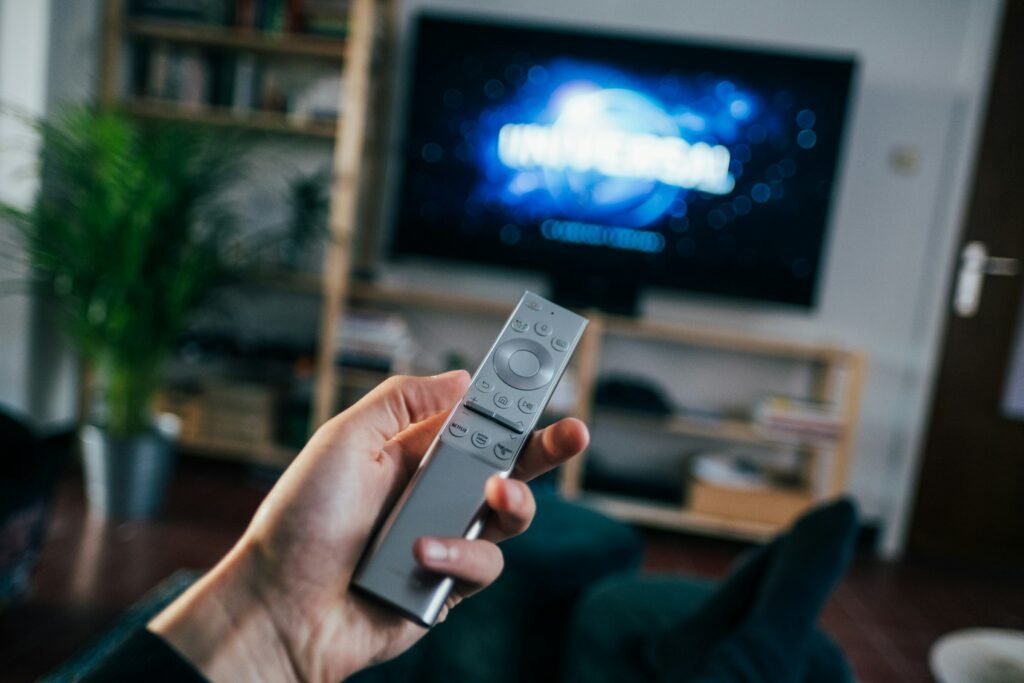
Illustrative remote-control photo by Zulfugar Karimov on Unsplash, used under the Unsplash License. It is not a screenshot of a particular player’s interface.